How to Prep a Fleet of iPads for an Event: Settings, Lockdown and Charging
· iPad, iOS & apps
iPads are everywhere at events: check-in desks, lead capture at trade show booths, surveys, photo booths, product demos and digital sign-up sheets. One iPad is easy to set up. Twenty that all need to behave the same way take some planning.
This guide walks through how to prep a fleet of iPads so they're ready for an event and stay that way all day.
Decide what each iPad will do
Start by listing every job the iPads will do:
- Check-in or registration
- Lead capture
- Surveys or feedback
- Product demos or catalogs
- Photo booth
- Payment or point of sale
Group iPads by job. iPads doing the same job should be set up identically. That makes training and troubleshooting simpler.
Update and install
Before the event, update every iPad to the same version of iPadOS. Then install the apps each group needs and sign in where required. Open each app once to handle first-launch prompts and permission requests, like camera or location access, so attendees never see them.
If you're preparing many iPads, consider a device management tool. Organizations can use Apple Business Manager with a mobile device management service to install apps and apply settings to many iPads at once.
Lock iPads to one app with Guided Access
Guided Access is a built-in iPadOS feature that keeps an iPad in a single app. It's ideal for kiosks and check-in stations. To set it up:
- Open Settings, choose Accessibility, then Guided Access, and turn it on.
- Set a passcode that only your staff know.
- Open the app you want to lock, then triple-click the top button (or Home button, on iPads that have one) to start Guided Access.
You can also disable areas of the screen and turn off hardware buttons during a Guided Access session. To end the session, triple-click again and enter the passcode.
For larger fleets, device management tools offer a similar Single App Mode.
Adjust key settings
On each iPad, review:
- Auto-Lock: Under Display & Brightness, set Auto-Lock to Never if the iPad is plugged in or used constantly. Otherwise, choose a longer time.
- Notifications: Turn on Do Not Disturb or a Focus mode so notifications don't pop up on attendees.
- Brightness: Turn off auto-brightness if the venue lighting changes during the day, and set a level that's easy to see.
- Sounds: Turn off keyboard clicks and other sounds that aren't needed.
- Control Center: Limit access from the lock screen.
Connect to the right network
Connect each iPad to the venue Wi-Fi in advance if you can. If the event Wi-Fi isn't available before the event, bring the network name and password, and assign someone to connect every iPad during setup. If your apps can work offline, test offline mode.
Plan charging
A busy event can drain an iPad's battery, especially with the screen set to stay on. Plan ahead:
- Use stands or enclosures that keep iPads powered.
- Charge every iPad fully the night before.
- Keep a charging station and a few spare iPads behind the desk.
- Label each iPad and its charger with a number.
Protect the iPads
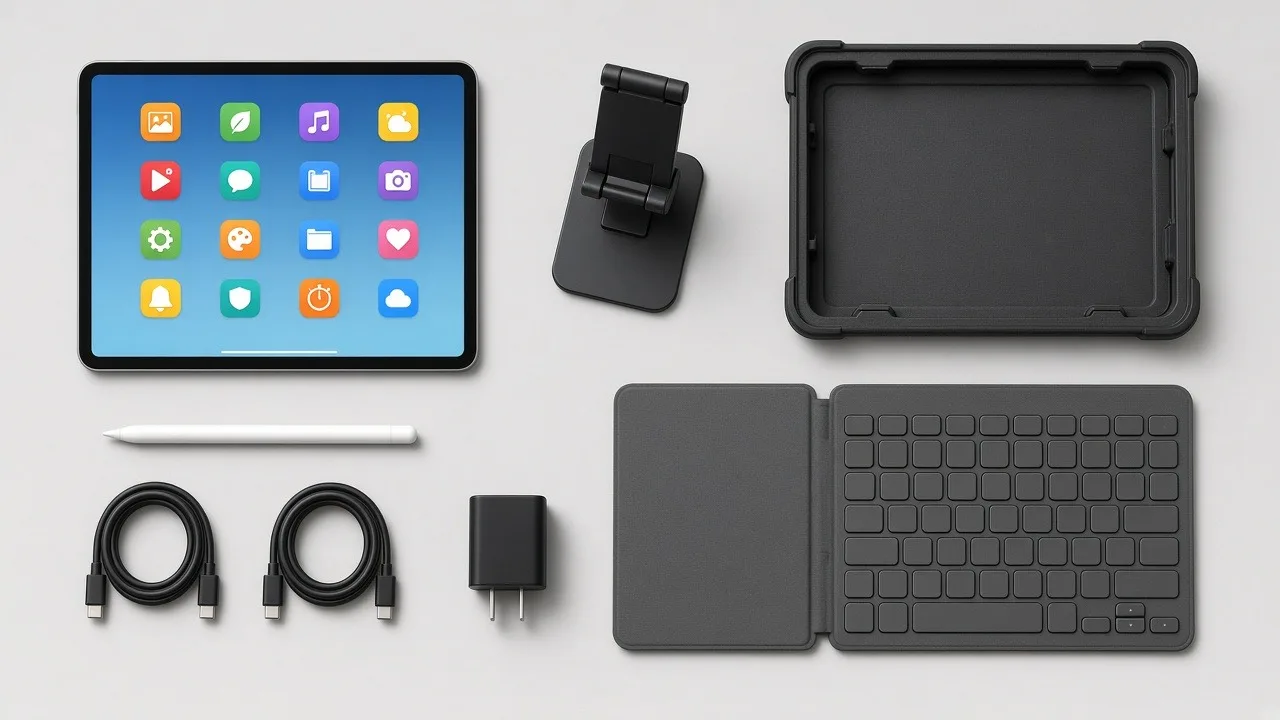
Use cases or enclosures that fit the job. Floor stands and kiosk enclosures keep iPads secure at check-in. Rugged cases help with iPads that are handed around. Security tethers can help at busy booths. See our guide to iPad accessories for more ideas.
Do a dress rehearsal
Set up one complete station the way it will look at the event, with the iPad in its stand or case, connected to power and locked in its app. Walk through the attendee experience from start to finish, then hand the iPad to someone who hasn't seen it and watch where they get stuck. Small fixes now save long lines later.
Train your staff
Give event staff a short walkthrough. Show them how to end Guided Access, restart an app, swap in a spare iPad and recharge. A short cheat sheet at each station helps.
Clean up afterward
After the event, export or sync any data you collected. Then sign out of apps and accounts, turn off Guided Access, and erase the iPads if they'll be used by someone else. Our guide to resetting an iPad walks through the steps.
Need iPads for your event?
If you need more iPads than you have, RentOuriPads.com rents iPads in bulk for events, with options for check-in and registration. Rentals ship nationwide with prepaid return labels, and on-site setup is available as an extra-cost add-on. Request a quote with your event details.